To search the OMC using Glossa 2 you start by selecting Subcorpus (Database in the screenshots below).
The abbreviations indicate which languages each sub-corpus contains. Under Translation? (Translated in the screenshots below), select 'n' (for original/non-translated text only) or or 'y' (for translated texts only), and then the word(s) you want to search for, e.g. could do.
The Extended (advanced) search option is illustrated below, using a balanced and fixed sub-corpus: the fiction part of The English-Norwegian Parallel Corpus (ENPC-fiction).
1. Press "Extended" from the menu (follow the simple search guidelines to select Subcorpus (database), non-translated/translated text and search language(s), etc.):
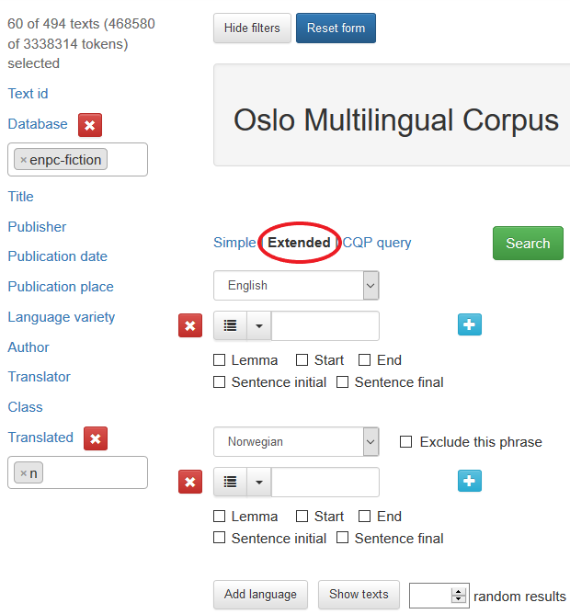
2. Type the first word in the English search window - could - press  and type the second word in the window that appears - do. (You can also specify how many words are allowed between the two search items (min./max. - default is 0), whether the search represents the lemma, the beginning or end of a word and whether it occurs sentence initially or sentence finally.)

3. To remove a search word, press the minus sign:

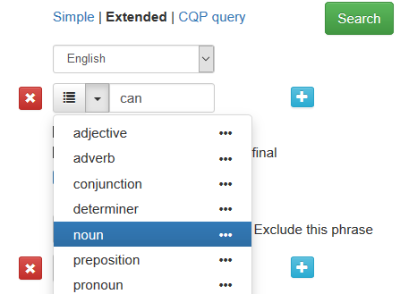
4. To search for a particular part-of-speech (POS), type in a word and select POS from the drop-down menu to the left of the search window, e.g. can as a Noun.
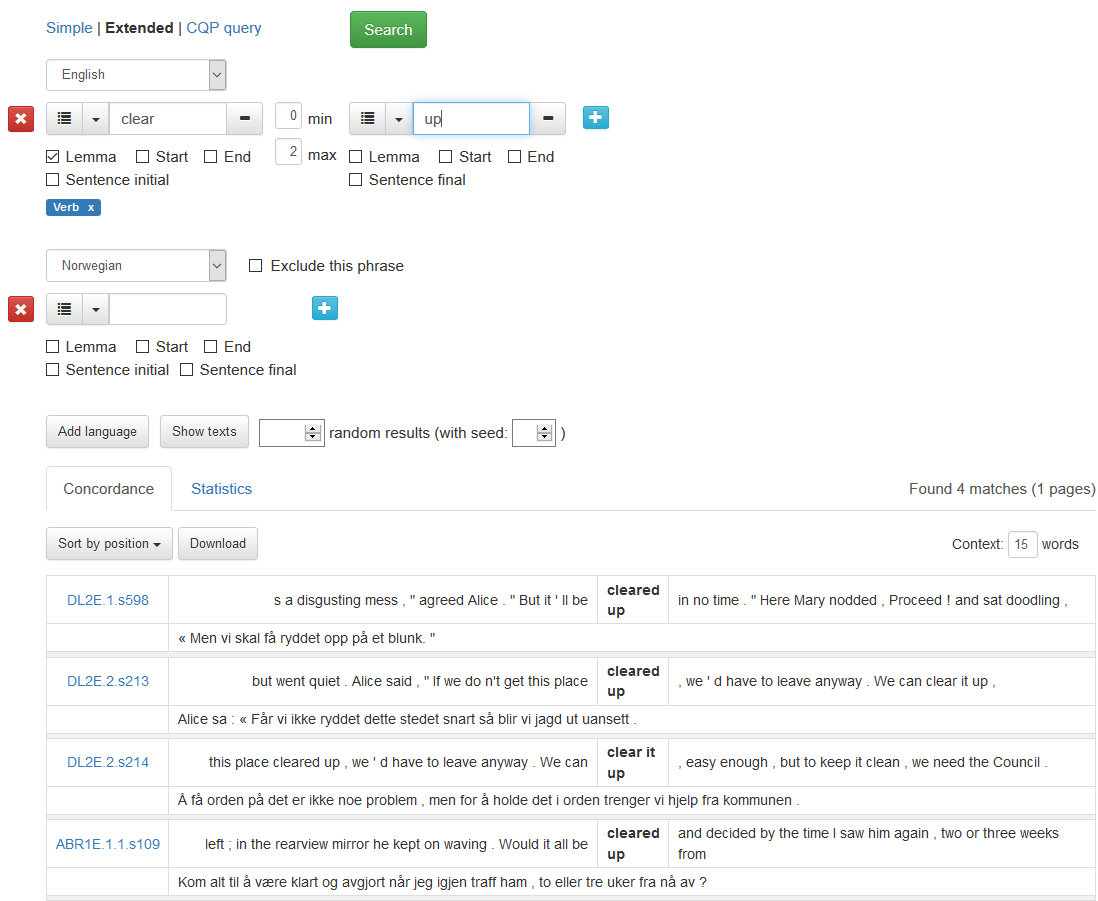
5. The following screen shot illustrates a search for the verb lemma clear followed by up (allowing a maximum of 2 words in between).
6. Random sample: the Extended search option allows you to get a random sample (specified here as 50 random results)

Other options
As in the case of Simple search, you can specify that a word, or words, has/have to be present in the other language, or you can specify that a word, or words, is/are not present in the aligned sentences by ticking the "Exclude this phrase" box (see Simple search, points 6+7).
See also Simple search, point 8 for more search options that also apply to the Extended search option.