General information
Lab rooms are booked through the University of Oslo Outlook calendar system. You can use the Outlook desktop or mobile app, or access Outlook on the web through mail.uio.no.
Apple Calendar cannot be used to book lab rooms. If you use Apple Calendar, please use Outlook on the web or the Outlook app to make, change, or cancel bookings.
Follow the instructions below to request access, add the lab calendars, and manage your bookings.
Access to the booking system
To receive permission to book lab rooms, email the lab manager Franziska Köder.
Booking guidelines
All lab spaces are allocated on a first-come, first-served basis. Please keep the following guidelines in mind:
- Book rooms only when you are certain that you will need them. Do not reserve rooms or equipment without scheduled participants.
- If you no longer need a booking, cancel it as soon as possible so that others can use the facilities.
- Allow sufficient time at the end of each session to save and delete data from lab devices.
How to book lab rooms
Rooms available for booking
The following testing rooms can be booked through Outlook:
- Video Studio (113)
- EEG room (115)
- Flexible testing room (116)
- Child eye-tracking room (431)
- Adult EyeLink room (440)
Add lab calendars in Outlook
We recommend using the Outlook desktop or mobile app. The rooms can also be booked through Outlook on the web.
- Open the Outlook app and select the Calendar icon.
- In the left-hand panel, right-click "Other Calendars".
- Select "Add Calendar", then "From Room List".
- Search for HWH to find rooms in Henrik Wergelands hus and select the relevant calendars. Lab calendars are named "HWH: Sociocognitive lab -"
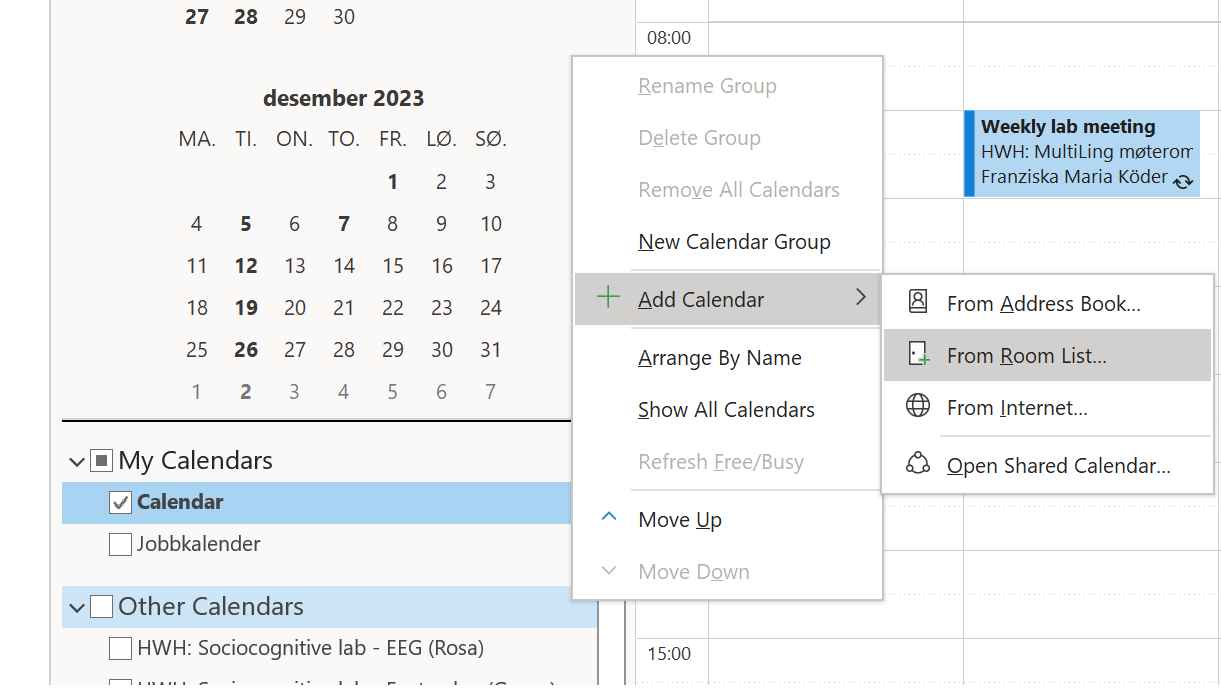
The selected room calendars will now appear under Other Calendars, and you can check when the lab rooms are available.
Book lab rooms
In your personal calendar, select the required date and time.
- Click "New Meeting".
- Enter a clear title for your booking, such as your project or study name.
- Select "Location". Search for HWH, select the lab room you wish to reserve, and click OK.
- Click Send.

Once the reservation has been accepted, it will appear in both your personal calendar and the relevant room calendar.
Cancel a booking
If you no longer need a room, please cancel the reservation promptly:
- Select the booking in your personal calendar.
- Click "Cancel Meeting".
- Click "Send Cancellation".